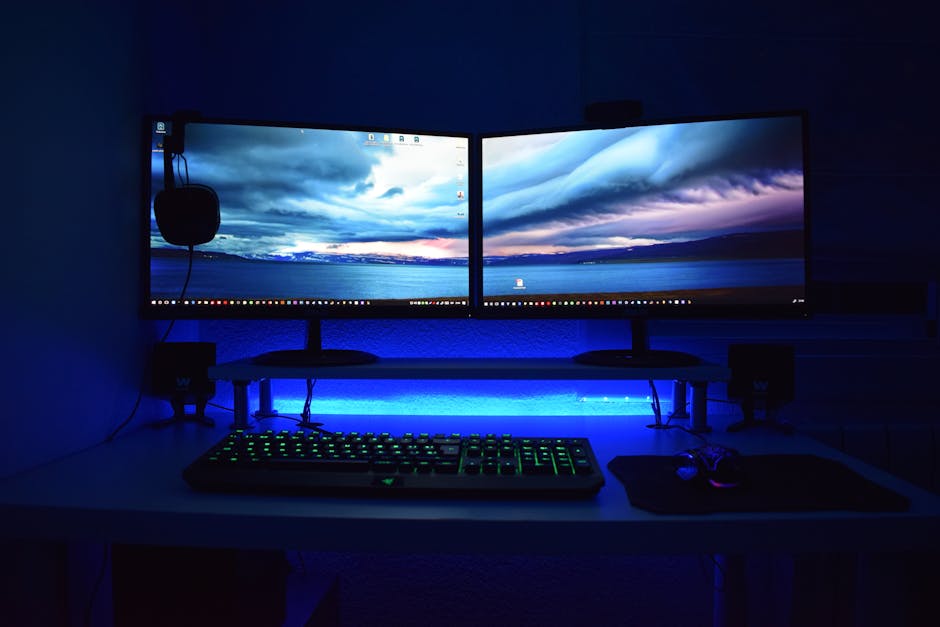
Dual Monitor Setup Guide: Layout, Alignment and Settings
Setup Your Desk Editorial
Updated November 1, 2026
Quick Answer
Place your main monitor directly in front of you and the second beside it at the same height, angled slightly inward, or center both if you use them equally. Keep the tops at or just below eye level, use matching scaling, and arrange them in your operating system's display settings.
Set up two monitors comfortably, including primary-screen placement, angles, matching heights and the display settings that make it feel seamless.
Decide how you will use two screens
Before moving anything, think about your workflow. If you work mostly on one screen and glance at the other, a primary and secondary arrangement makes sense. If you move windows evenly between both, a symmetric layout is more comfortable.
Your usage decides the layout. Writers and programmers often prefer one main screen with a reference screen. Designers and analysts may split tools between two equal screens.
Primary and secondary layout
Put the primary monitor directly in front of you, centered on your keyboard. Place the second one to the side, angled slightly toward you so you do not twist your neck as much. Keep the bezels close to each other for easier mouse movement.
This arrangement protects your neck. You should not need to turn your head far to see the primary screen, and looking sideways to the second one should be occasional.
If your monitors have different heights, the stand's pivot point may not align. Use an arm or a stack of sturdy books under the lower one, and check the result by dragging a window across the gap.
- ✓Main monitor centered on the keyboard
- ✓Second monitor tucked beside it
- ✓Slight inward angle toward your seat
- ✓Matching top edge height
Symmetric layout
If you use both monitors equally, center your body at the meeting point between them. Angle each screen inward slightly so they form a shallow curve around you.
This avoids a favored side and spreads head turning evenly. It works best with monitors of the same size and a wide enough desk.
Height, distance and angle
Match the height of both monitors so the tops sit at or just below eye level and the screens are aligned. Differences make windows jump awkwardly when you drag them. An arm or stand with height adjustment fixes this quickly.
Sit about an arm's length from the main screen. If the second monitor is further away, increase scaling slightly so text stays readable.
Software settings
In your operating system's display settings, drag the screen icons to match the physical arrangement. Choose which one is the main display, which holds your taskbar or menu bar, and set each monitor to its native resolution.
If your screens are different sizes, adjust scaling so text looks similar on both. Many systems also let you set separate wallpapers, which can help you tell the screens apart at a glance.
If you use a laptop as the second screen, raise it on a stand so its screen matches the height of the main monitor. A laptop sitting low beside a raised monitor pulls your head down.
- ✓Match the on-screen arrangement to the real one
- ✓Set the native resolution on each screen
- ✓Adjust scaling so text sizes look consistent
- ✓Choose a main display
- ✓Lower brightness on the secondary screen if needed
Cables and connections
Use the right cable for each monitor. DisplayPort and HDMI are common, and USB-C works well if your laptop supports video output. A dock can combine them into a single cable to the computer.
Mind your cable length and routing so the monitors can move freely on their arms. Leave some slack and use clips to keep things tidy.
When one bigger screen is better
Two monitors are not always best. If you mostly work in one window, a single larger or ultrawide monitor may be simpler. The bezel gap can also interrupt spreadsheets or design work.
Try the setup for a week. If you find yourself ignoring one screen, you may be happier with a single, well-placed display.
Common mistakes with two monitors
The most common mistake is putting the second monitor off to one side at a different height. It forces your neck to twist and tilt, which becomes tiring over a long day.
Another mistake is ignoring scaling. If one monitor is much sharper than the other, windows can change size as you drag them across, which is irritating. Adjust the scaling so the text looks similar.
Distance between the two screens deserves attention as well. Keep the bezels as close as the stands allow, because every extra inch makes dragging windows across the gap feel clumsy, and it pulls your head further to one side.
If your desk is shallow, push both screens back on arms so you can use the space in front for a keyboard and notebook.
- ✓Mismatched heights
- ✓Gap too wide between bezels
- ✓Main screen off to the side
- ✓Different scaling on each monitor
- ✓No cable slack for adjustments
Your Questions Answered
Do both monitors need to match?
Not necessarily, but matching size and resolution makes a setup feel more seamless and avoids scaling quirks.
Which monitor should be the main one?
The one you look at most. Put it centered in front of you and use the second for reference, chat or tools.
Should I use landscape or portrait?
Landscape works for most tasks. A portrait second monitor suits documents, code, and long web pages.
What cable do I need?
HDMI or DisplayPort for most monitors, or USB-C if your laptop and monitor support video over USB-C.
Does a dual setup need a monitor arm?
Not strictly, but a dual arm or two arms make alignment easy and free desk space.
Advertisement
Sponsored: today's featured offer →Advertisement