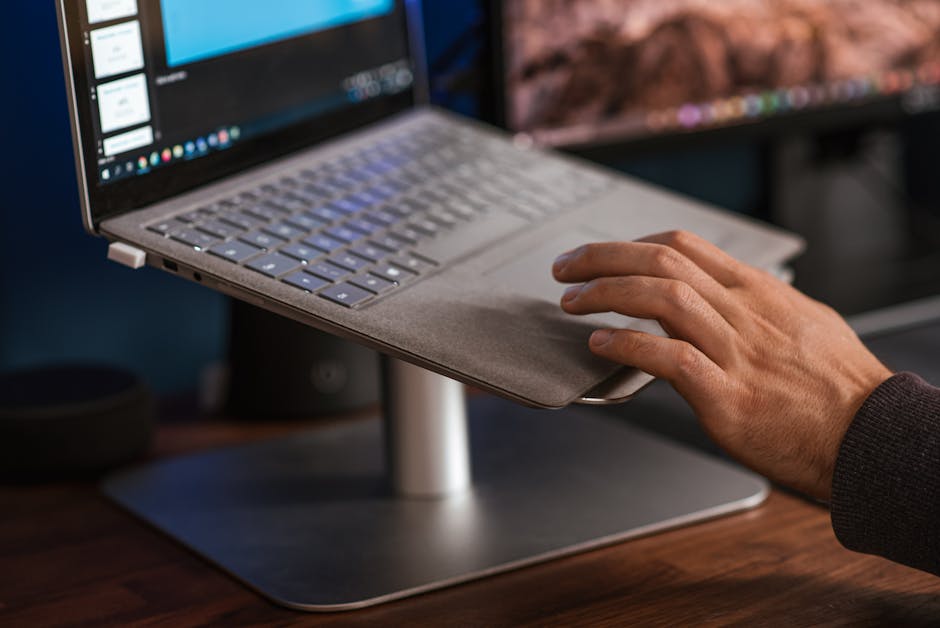
Ergonomic Setup for Laptop Users: Fix Neck and Wrist Strain
Setup Your Desk Editorial
Updated November 1, 2026
Quick Answer
Raise the laptop on a stand so the top of the screen is near eye level, then use a separate keyboard and mouse at elbow height. The core problem with laptops is that the screen and keyboard are attached, so you must separate them to sit comfortably.
A laptop forces a compromise between screen and keyboard height. Here is how to separate them with a stand, keyboard and mouse for a healthier setup.
Why laptops cause problems
A laptop combines the screen and the keyboard in one low, compact unit. To see the screen, you tilt your head down. To type, you lift your hands. Both positions strain the neck, shoulders, and wrists if you hold them for hours.
An ergonomic desk setup works by letting you put the screen and the keyboard where each belongs. The screen should be at eye level; the keyboard should be at elbow height. With a laptop alone, you cannot have both, so the answer is to add two inexpensive pieces: a stand and a separate keyboard.
Step 1: raise the screen
A laptop stand lifts the laptop so the top of the screen is at or slightly below your eye line. Choose one with adjustable height so it fits both you and a different desk or chair later.
Aim for roughly an arm's length between your eyes and the screen. If text feels small at that distance, increase the display scaling instead of leaning in.
If your laptop has a very bright, reflective screen, tilt the stand slightly or move the desk to reduce glare. Small adjustments often make the difference between a comfortable setup and one that causes eye strain.
- ✓Top of the screen at or just below eye level
- ✓Arm's length viewing distance
- ✓Stand that is stable and keeps vents clear
- ✓Slight backward tilt to reduce glare
Step 2: add a keyboard and mouse
Once the screen is up, the laptop's own keyboard sits too high to use, so add a separate keyboard and mouse. Put them on the desk at elbow height, with your upper arms hanging naturally and wrists straight.
A compact keyboard saves desk space, and a mouse you can hold comfortably with your whole hand avoids a tight claw grip. Keep both close enough that you do not reach forward.
Step 3: sit properly
With the equipment in place, check your seat. Your feet should be flat or on a footrest, your lower back supported, and your knees about level with your hips. Sit back in the chair rather than perching on the edge.
If your chair has armrests, set them so your shoulders stay relaxed and your forearms rest lightly. Armrests that are too high push your shoulders up, while ones that are too low give no support.
Working without a desk
Many laptop users work from a sofa, kitchen table, or cafe. You cannot fix everything, but you can improve the setup. At a kitchen table, use a foldable stand and a compact keyboard, and sit on a firm chair with a cushion if needed.
On a sofa, avoid working for long stretches. If you must, use a lap desk, put a pillow behind your lower back, and move every half hour.
- ✓Portable foldable laptop stand
- ✓Travel-size keyboard and mouse
- ✓A small cushion for lumbar support
- ✓A timer to stand and move regularly
Laptop plus external monitor
If you do a lot of focused work, the best setup is a laptop connected to an external monitor. Close the laptop or use it as a second screen, and put the monitor at eye level. This keeps your posture upright and gives you more space for windows.
A USB-C dock simplifies this: one cable can handle the display, power, keyboard, and mouse. When you want to leave, you unplug a single cable.
Habits that support the setup
No setup removes the need to move. Set a reminder to stand up every 30 to 60 minutes, look at something far away for a moment to rest your eyes, and shake out your hands. Small breaks add up.
Review your setup monthly. If you notice aches in the neck, shoulders, or wrists, change one variable at a time, such as screen height or chair position, and see whether it helps.
Finally, think about your regular schedule. If you only use a laptop for an hour a day, a basic setup may be enough. If it is your main computer, investing in a stand, keyboard, and mouse pays off quickly.
A quick laptop ergonomics checklist
Use this checklist the next time you sit down with your laptop. It takes under a minute and catches the problems that cause the most discomfort.
Run through it when you set up in a new place, such as a coworking space or a hotel room, since you will not have your usual equipment.
- ✓Screen top near eye level
- ✓Separate keyboard and mouse at elbow height
- ✓Feet supported on the floor or a footrest
- ✓Back supported by the chair
- ✓Short breaks every 30 to 60 minutes
Your Questions Answered
Is it bad to work on a laptop all day?
It is not harmful in itself, but a laptop on a desk puts the screen low and the keyboard high, which encourages a forward head and raised shoulders. Separating the two fixes most of the problem.
Do I need an external keyboard?
If you use the laptop for more than short sessions, yes. Once you raise the screen, the built-in keyboard is too high and too far away to type comfortably.
What if I travel a lot?
Choose a lightweight foldable stand and a compact keyboard. They pack flat and give you an ergonomic setup in a hotel or cafe.
How high should the laptop screen be?
The top of the display should be at or slightly below eye level, about an arm's length away.
Can I stack books instead of buying a stand?
Yes, as a temporary fix. Make sure the stack is stable and the laptop has airflow, and upgrade to a proper stand for daily use.
Where to Buy
Advertisement
Sponsored: today's featured offer →Advertisement